Table of Contents
Setting Up DeviceCheck for KVProxy
KVProxy uses Apple’s DeviceCheck service to verify that requests to your proxy originate from your legitimate iOS app. This allows us to prevent unauthorized clients from replaying requests or abusing your API keys.
To enable this protection, you’ll need to generate a DeviceCheck private key (.p8) in your Apple Developer account and upload it to the Certificates tab inside the KVProxy dashboard.
This guide walks you through the process.
Step 1 — Log in to Apple Developer
-
Go to the Apple Developer portal: https://developer.apple.com/account
-
Sign in with the Apple ID associated with your developer account.
-
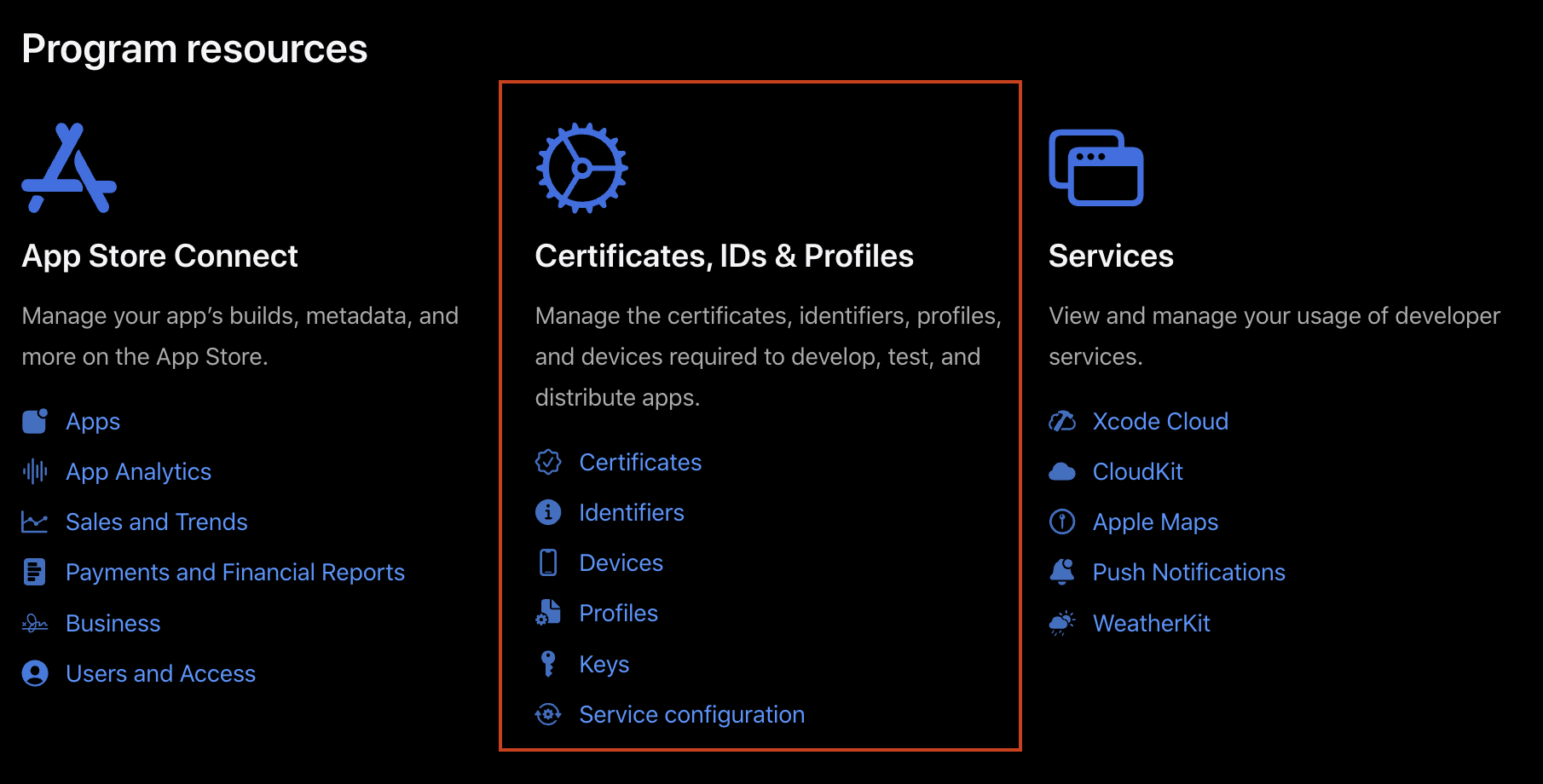
Locate the Certificates, Identifiers & Profiles section:
Step 2 — Create a DeviceCheck Key
-
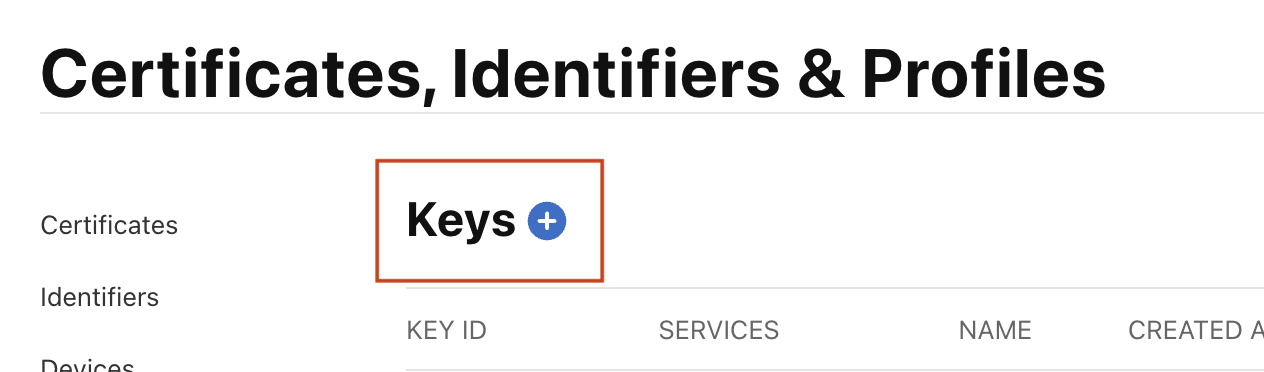
In the Certificates, Identifiers & Profiles section, click on Keys.
-
Click the “+” button to create a new key.
-
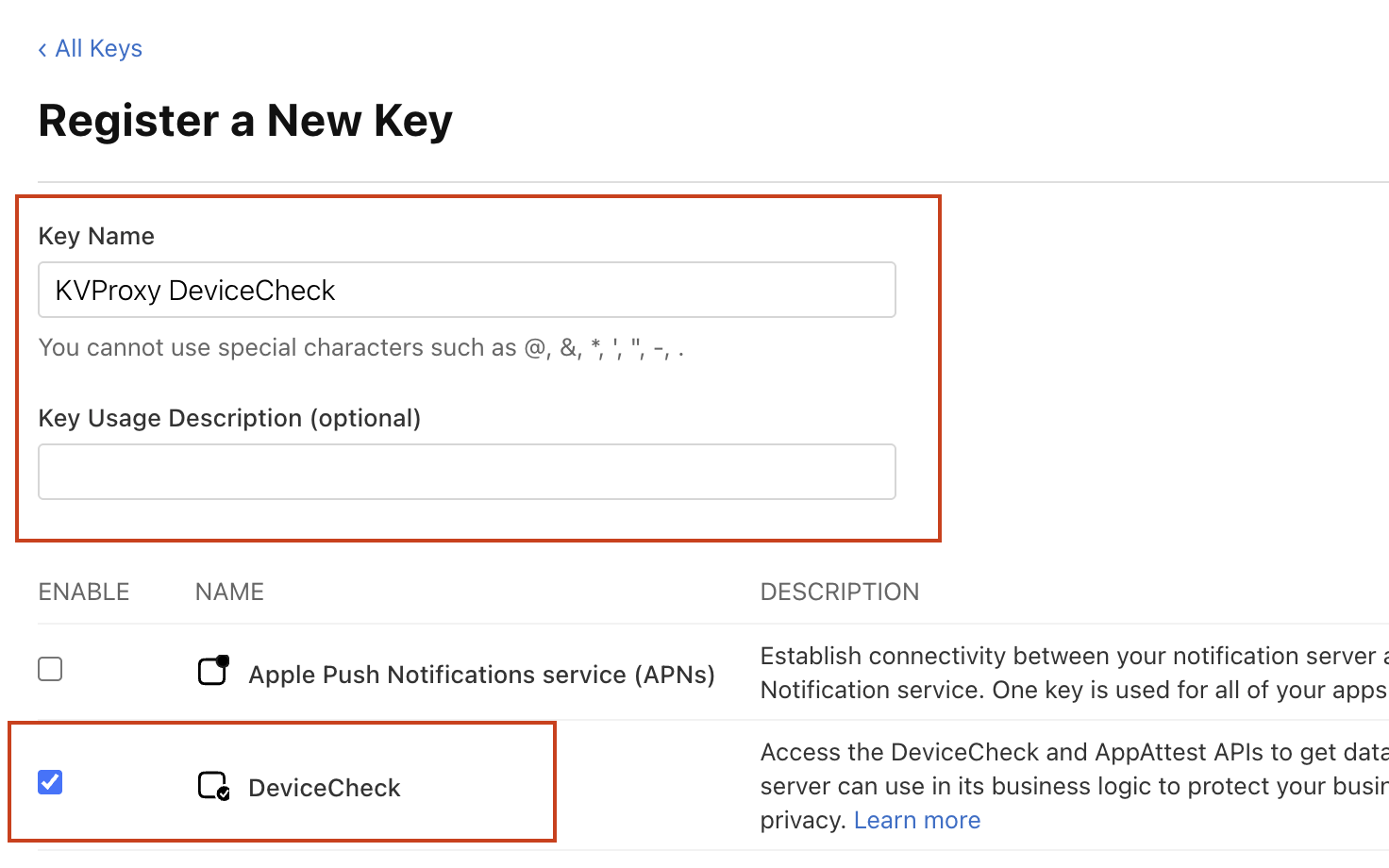
Give the key a name, for example: "KVProxy DeviceCheck"
-
Under Key Services, check DeviceCheck
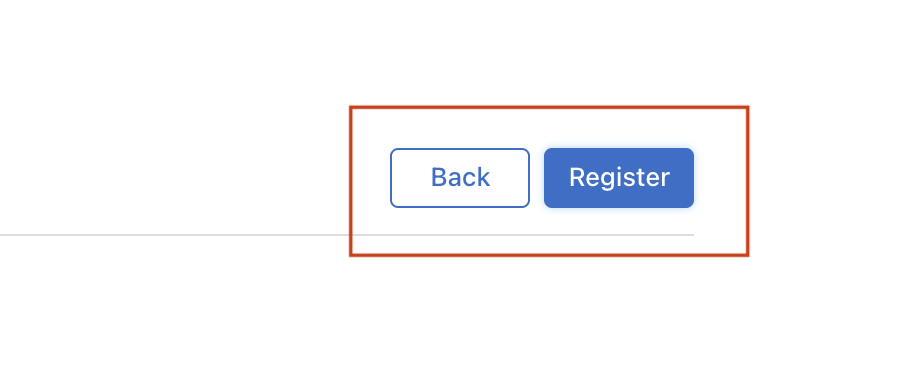
- Click Continue, then Register.
Step 3 — Download the .p8 File
After registering:
- Click Download to download your
.p8file. - Save this file somewhere secure.
⚠️ Important:
Apple only allows you to download the .p8 file once. If you lose it, you must revoke the key and generate a new one.
Step 4 — Copy Your Key ID and Team ID
You will now need:
- Key ID
- Team ID
- The downloaded .p8 file
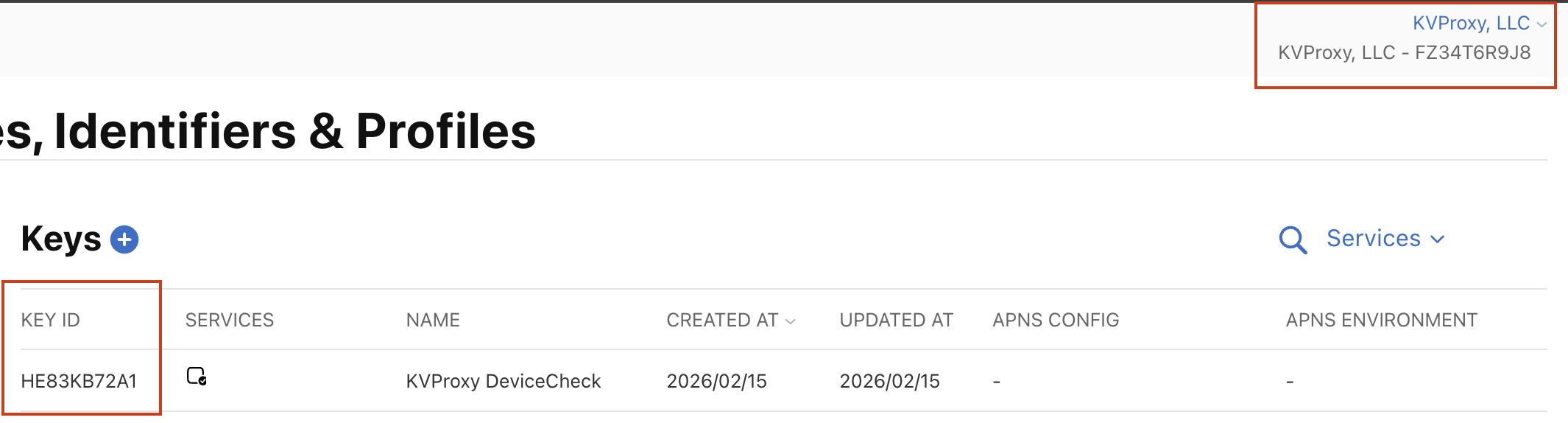
On the Keys page, you’ll see your newly created key listed. The Key ID is displayed in the table. Your Team ID is rendered in the top left.
Step 5 — Upload to KVProxy
- Log in to your KVProxy dashboard.
- Navigate to the Certificates tab.
- Provide:
- The
.p8file - Your Key ID
- Your Team ID
- The
Once uploaded, KVProxy will immediately begin validating DeviceCheck tokens issued by any iOS app associated with your team.
What Happens Next?
After this step:
- Your iOS app will generate DeviceCheck tokens.
- KVProxy will verify those tokens server-side.
- Only validated devices will be allowed to proxy requests using your protected API keys.
This ensures:
- API keys never live in your client
- Only your legitimate app can make requests
- Unauthorized scripts or extracted binaries cannot abuse your third-party credentials
Troubleshooting
If you:
- Lose your
.p8file → Revoke the key and generate a new one. - Upload the wrong Team ID or Key ID → Update the values in the Certificates tab.
- See validation errors → Ensure that your app is signed by the same team associated with the certificate.
If you need help, contact support@kvproxy.com and include:
- Your project slug
- Key ID
- Team ID
- The error message you're seeing