Table of Contents
KVProxy Project Setup Guide
This guide will walk you through getting your first project fully configured and ready to proxy requests from your iOS app.
By the end of this setup, you will have:
- Created a development token for local testing
- Installed and initialized the KVProxy iOS SDK
- Configured DeviceCheck for real devices
- Created your first Proxy Rule
Let’s get started.
1. Create a Dev Token (for local development)
When you are developing locally or using the iOS Simulator, you cannot mint real DeviceCheck tokens. Instead, KVProxy uses Dev Tokens to authenticate your app during development.
How Dev Tokens Work
A Dev Token:
- Authenticates your development build with KVProxy
- Automatically registers your client
- Remains valid until you delete it
- Should never be shipped in a production build
Create a Dev Token
You manage all tokens under:
Project → Dev Tokens
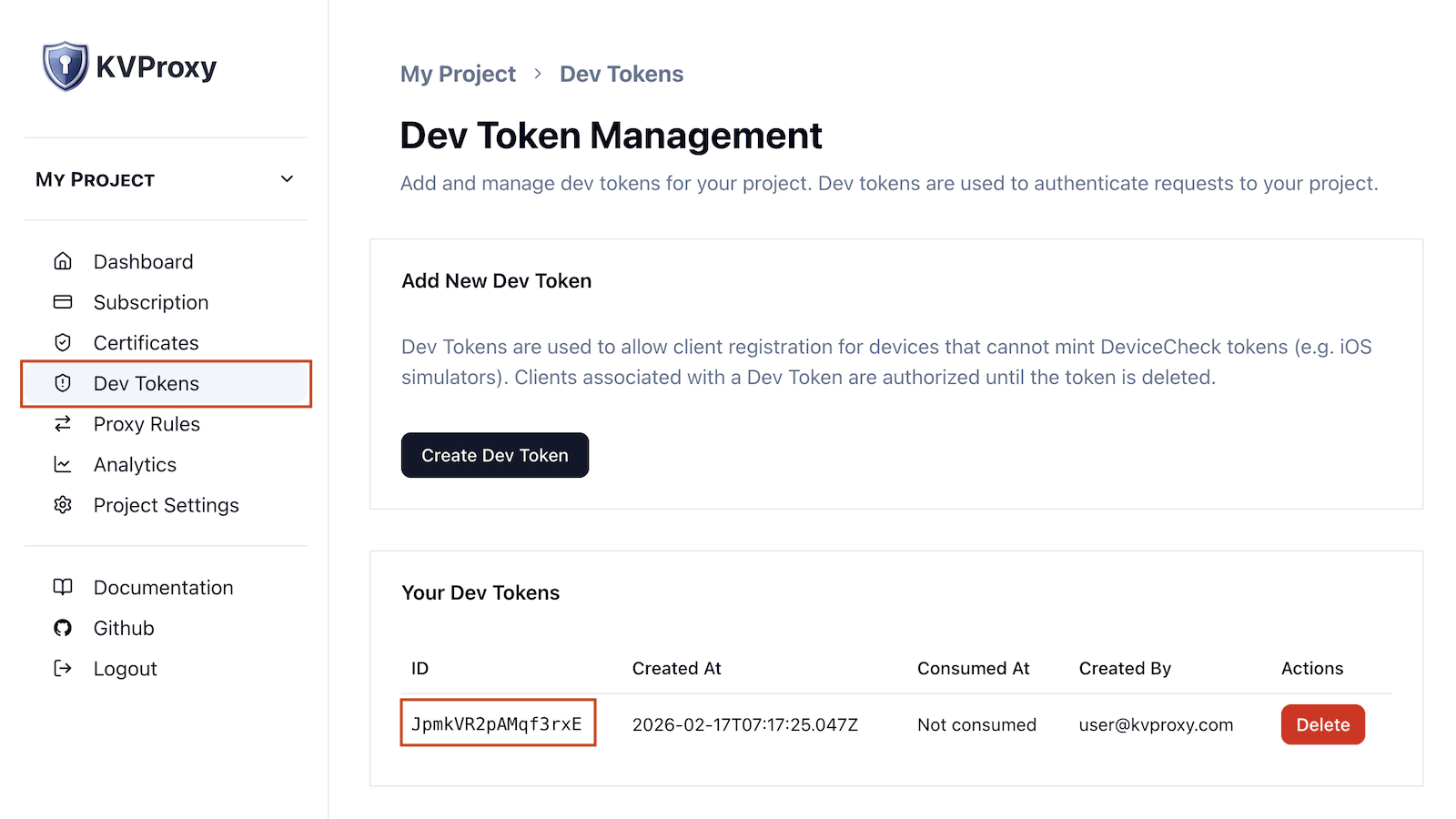
Once created, copy the token value. You will use it in your Xcode scheme shortly.
2. Add the KVProxy iOS SDK
KVProxy provides a lightweight Swift package that integrates directly into your app.
Add the Swift Package
Add the following package dependency to your project:
https://github.com/kvproxy/kvproxy-ios
In Xcode:
- File → Add Package Dependencies...
- Paste the URL above
- Select the latest version
Initialize KVProxy
In your app’s startup path (typically in App or AppDelegate), add:
KVProxyInitialize(project: "your-project-slug")
Replace "your-project-slug" with your project’s slug, shown in the dashboard (also the last component of your project's dashboard URL.)
This tells the SDK which KVProxy project it belongs to.
Set Your Dev Token in Xcode
To authenticate during development:
- Edit your Scheme
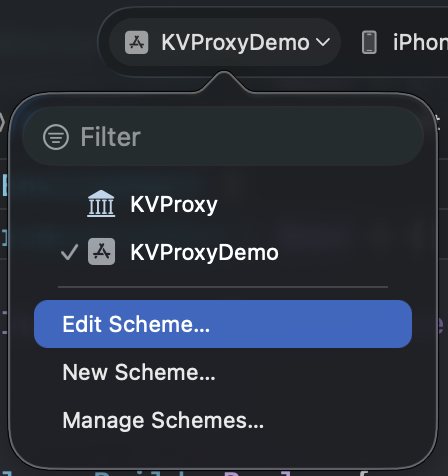
- Add an Environment Variable:
KVPROXY_DEBUG_TOKEN = your-dev-token
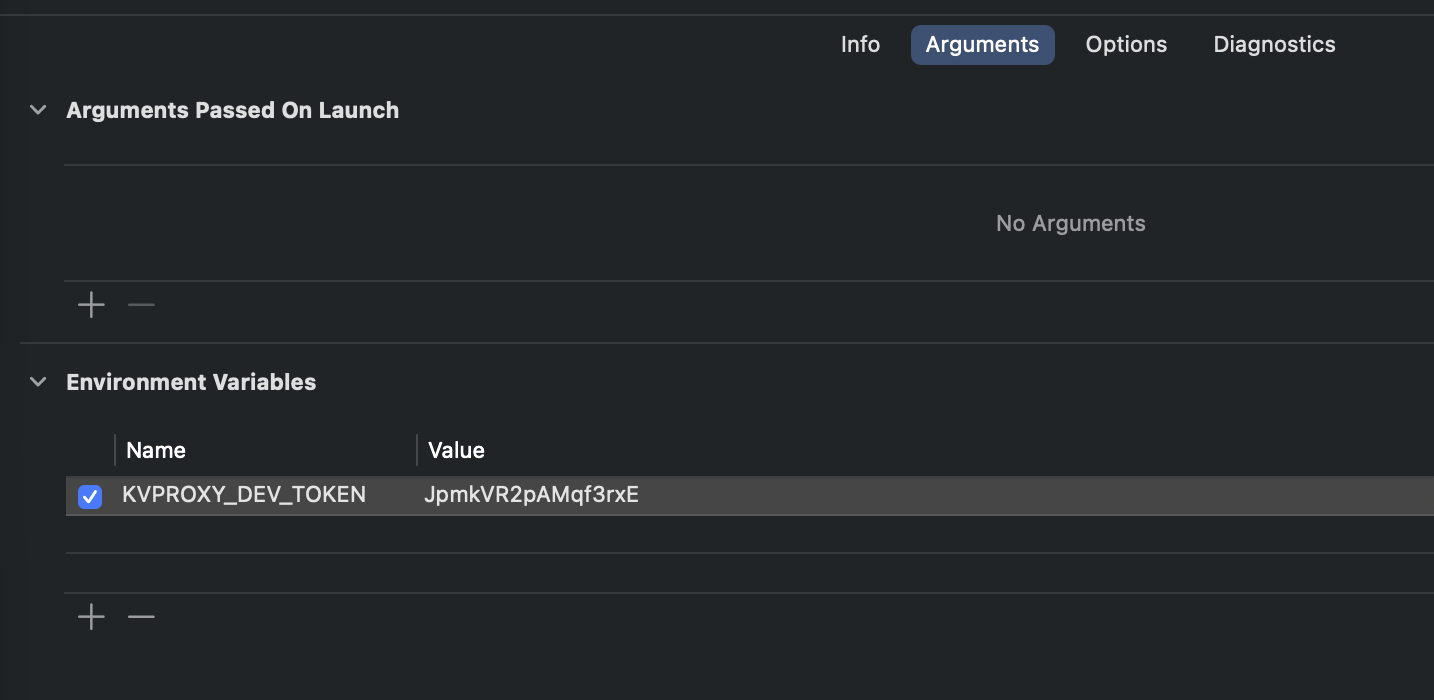
Now when your app launches, the SDK will:
- Register the client
- Authenticate using your Dev Token
- Begin proxying requests
You are now connected.
3. Configure DeviceCheck for Real Devices
Dev Tokens are only for development.
For real devices and production builds, KVProxy uses Apple DeviceCheck to authenticate clients securely.
To enable this:
- Generate a DeviceCheck
.p8key from your Apple Developer account - Upload the
.p8file to KVProxy - Provide your Team ID and Key ID
Follow the detailed DeviceCheck setup guide here.
Once configured:
- Real devices will automatically mint DeviceCheck tokens
- KVProxy will validate them
- No secrets are ever shipped in your app
This gives you secure, production-grade client authentication.
4. Create a Proxy Rule
Proxy Rules define how KVProxy modifies outgoing requests before forwarding them to third-party services.
Without a rule, KVProxy does nothing. Rules are explicit and domain-based.
Go to:
Project → Proxy Rules
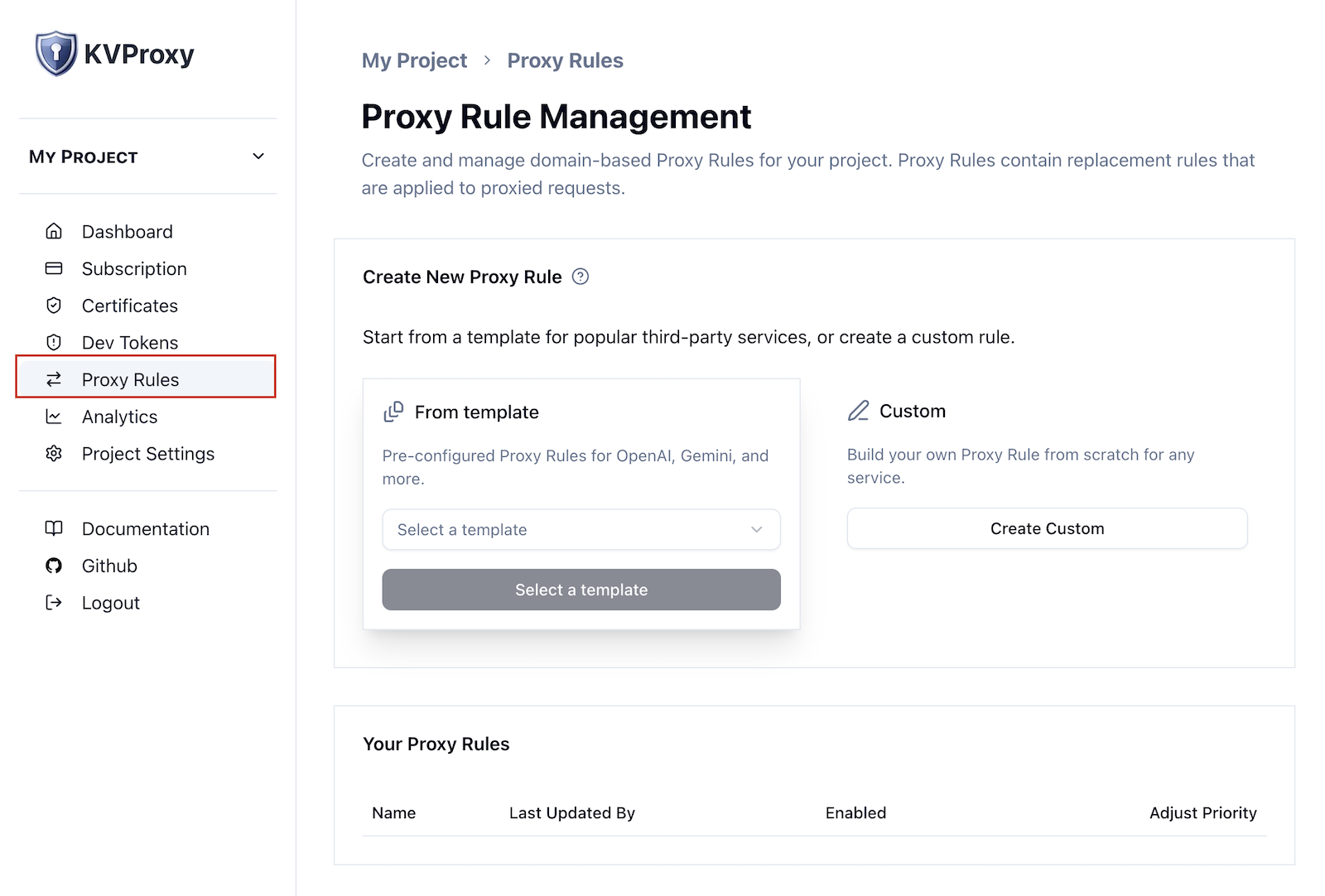
Click Create New Proxy Rule.
You have two options:
Option A: Start From a Template
Templates exist for popular services and pre-configure common patterns.
Examples include:
- OpenAI
- Gemini
- ElevenLabs
- And more
Templates automatically configure hostname matching and common header replacements.
Option B: Create a Custom Rule
If you are integrating with a different API, choose Custom.
You’ll configure:
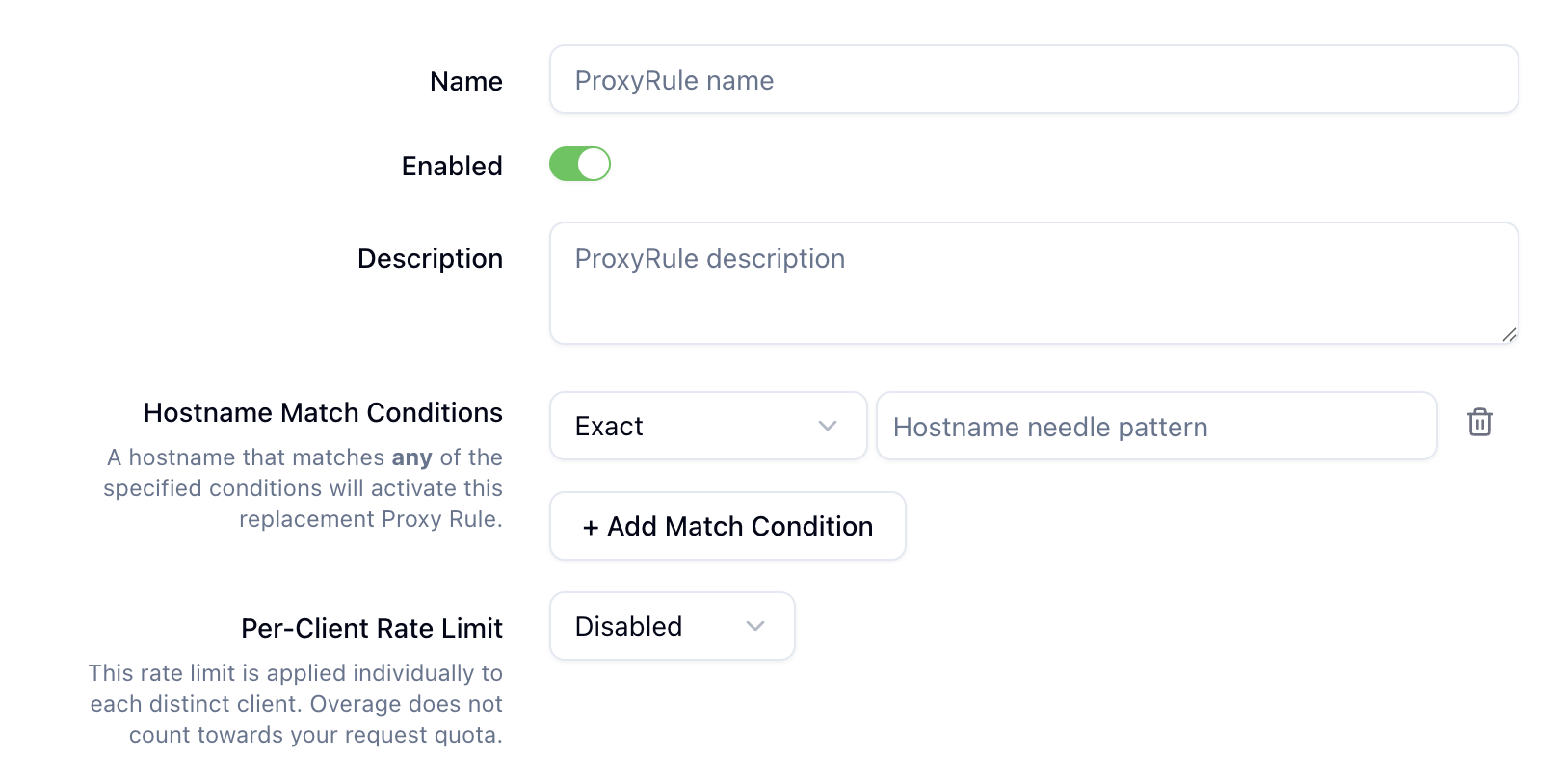
1. Hostname Match Conditions
KVProxy activates a rule when a request’s hostname matches your conditions.
Example:
api.elevenlabs.io
You can:
- Match exact hostnames
- Add multiple match conditions
- Enable or disable the rule
2. Replacement Rules
Replacement Rules define what KVProxy modifies in the request.
Common example:
| Target | Key | Behavior |
|---|---|---|
| HTTP Headers | x-api-key | Replace or Insert |
Instead of shipping your real API key in your app, you can:
- Put a placeholder value in your request
- Let KVProxy replace it with the real secret stored securely in your dashboard
You can configure:
- Headers
- Query parameters
- Request body values
- Replace vs Insert behavior
- Per-client rate limiting
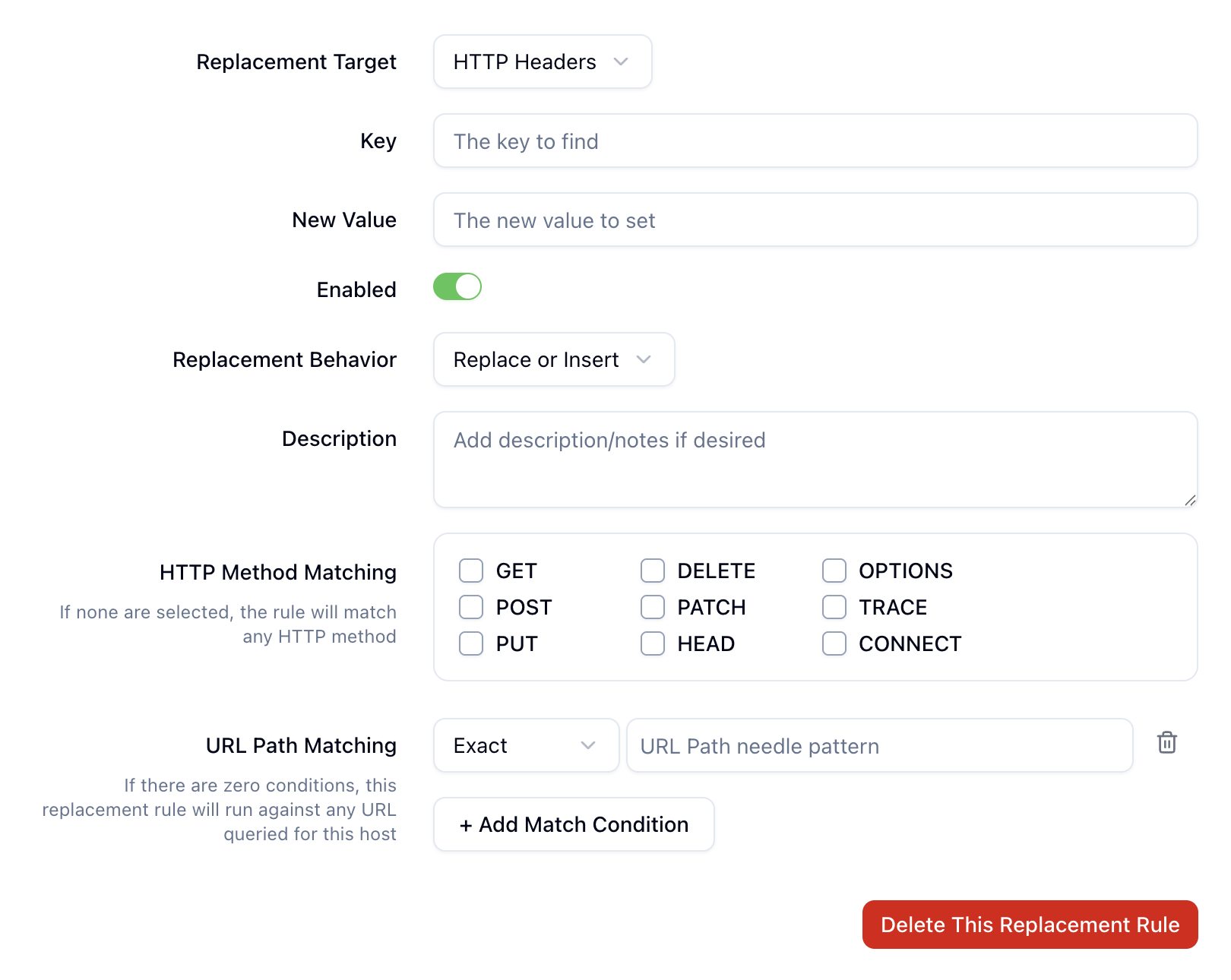
Once saved and enabled, KVProxy will apply these rules in order whenever a matching request arrives.
What Happens at Runtime
After setup:
- Your app initializes KVProxy
- The client registers and authenticates
- Requests matching your hostname conditions are intercepted
- KVProxy replaces sensitive values
- The request is forwarded to the third-party API
Your real API keys never live in your mobile app.
Quick Checklist
Before shipping:
- Dev Token removed from production build
- DeviceCheck certificate uploaded
- Proxy Rules created and enabled
- API keys stored in KVProxy dashboard
- App tested on real device
You’re Ready
Once these steps are complete, KVProxy is fully operational.
You can now:
- Securely integrate third-party APIs
- Rotate secrets without app updates
- Add rate limits
- Control proxy behavior centrally
If you run into issues, check the Documentation section in the sidebar or reach out via support.